Step-by-step guideWebOwner / Admin
Manage users, invitations, roles, and access
What you will accomplish
You will invite a teammate and safely control their role, rooftop access, and departments.
Who can do this
Owners and Admins can open Users. An Admin cannot grant Owner or change/remove an Owner.
Before you start
Confirm the person's email, required role, rooftops, and departments—the configured portions of track access they need. Use least access necessary.
Invite a teammate
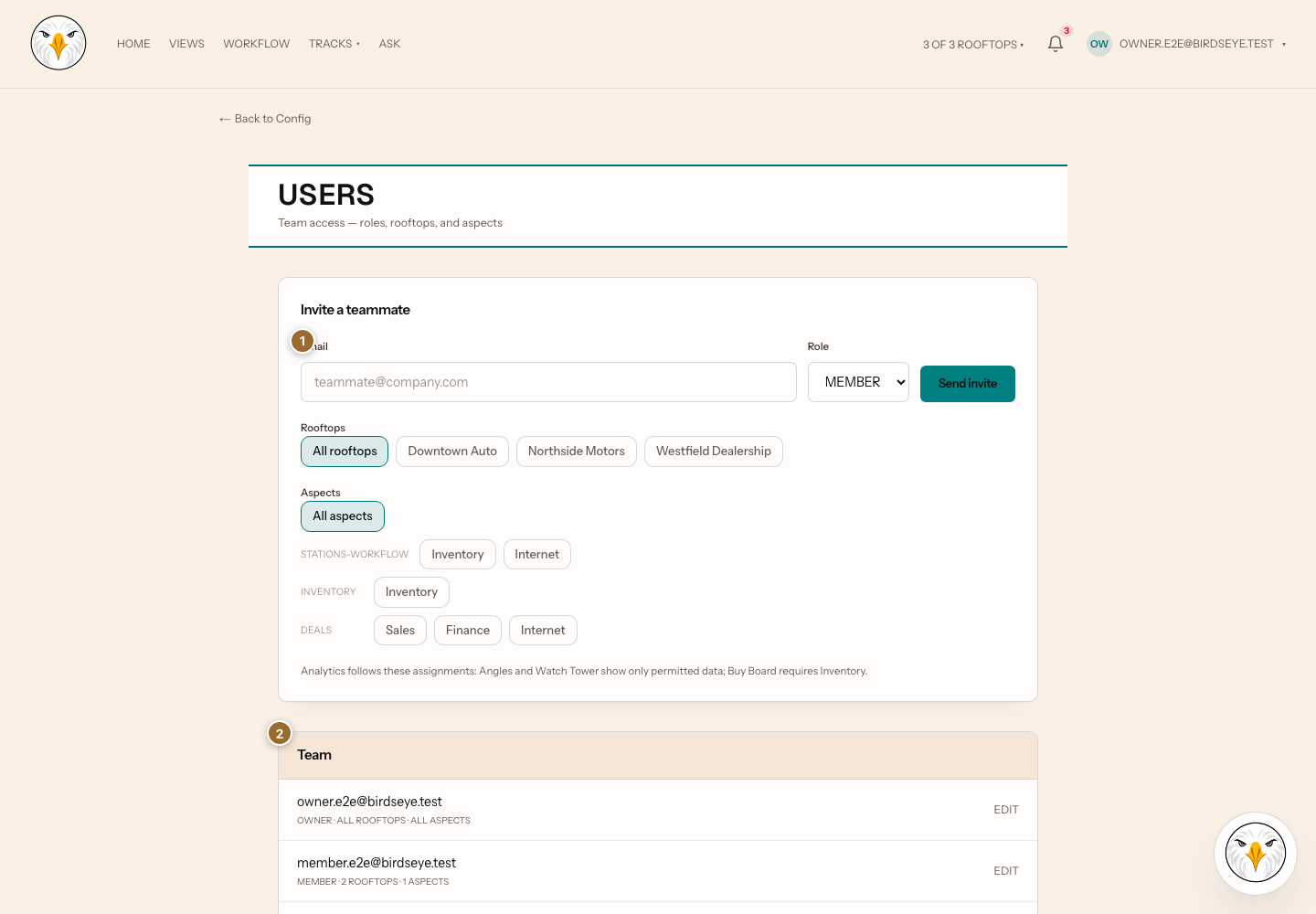
- Open the account menu.
- Select Config.
- Select Users.
- Under Invite a teammate, enter the email address.
- Select Role.
- For Admin or Member, select the required Rooftops and Departments. Empty selections mean all access for that category.
- Select the invite action.
- Confirm the invitation appears in the pending list.
Owners receive organization-wide access; scoped rooftop and department controls do not apply to that role.
Change or remove access
- Find the teammate in the user list.
- Change Role, Rooftops, or Departments.
- Confirm each saved state.
- To revoke organization access, select Remove.
- Read the confirmation and select Remove again.
Removal revokes access and cannot be undone; the person must be invited again if access is later required.
Expected result: pending invitations appear in the invitation list, while saved member changes are reflected in that person's role and access summary.
Troubleshooting and recovery
- You cannot select Owner: only an Owner can grant Owner.
- An Admin cannot edit a user: Admins cannot modify Owners.
- The invitation is not received: verify the address and pending status, then ask the recipient to check their sign-in method and mail filtering.
- A user sees too much or too little: review both rooftop and department selections.
Related articles
Last verified against the product on 2026-07-29.