Watch Tower watches and alerts
A watch compares each segment's value in a current period with that segment's baseline period. An alert is the Signal created when the configured direction, percentage threshold, and minimum sample are all satisfied during an evaluation.
What you will accomplish
You will create and review a watch on the web, understand why a segment did or did not cross, find Watch Tower alerts in Signals, and manage an existing watch.
Who can do this
This guide applies to people whose role and plan include Watch Tower and the selected track. Mobile users can review results, but a watch must be created or changed on the web.
Before you start
- Confirm that the intended track contains a numeric metric and a useful segment field.
- Decide which current period should be compared with which baseline.
- Decide whether rises, drops, or both matter.
- Choose a percentage change and a minimum record count that represent meaningful movement.
Open Watch Tower
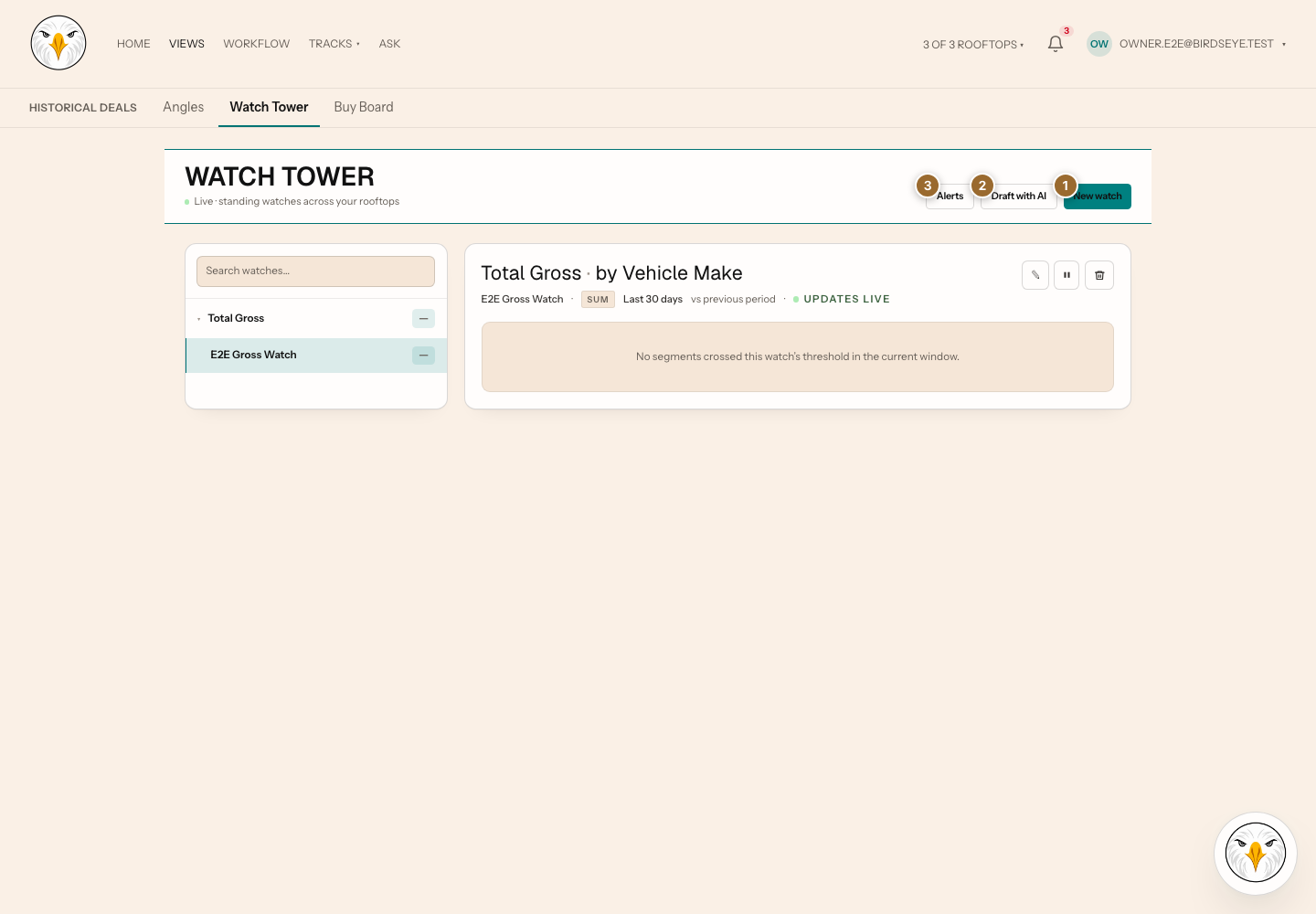
- On the web, select Views in the main navigation.
- Select Watch Tower in Views.
- Select New watch.
Expected result: the watch composer opens at Metric, the first of three steps: Metric → Window → Alerts.
Step 1: Metric
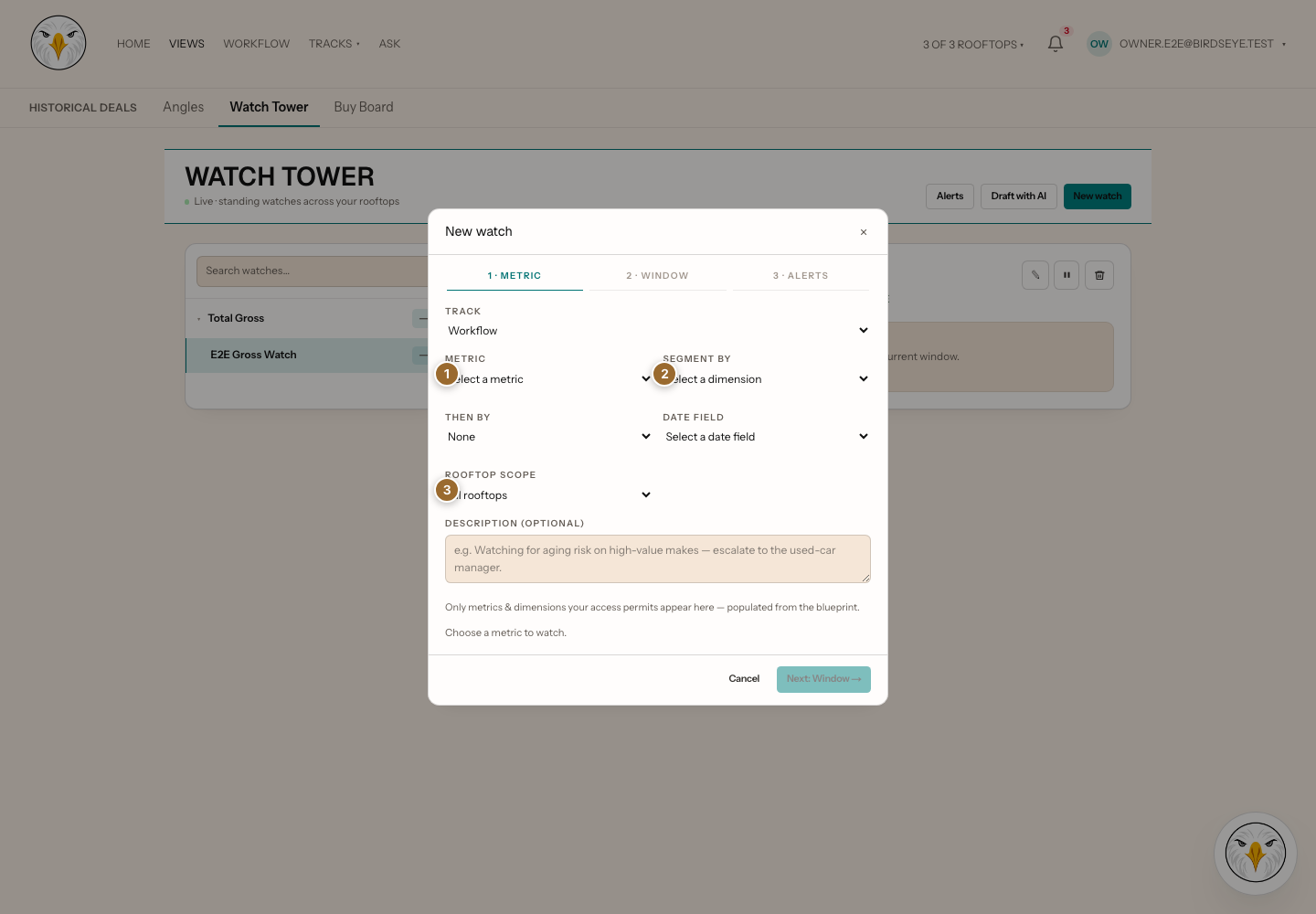
- Select Track.
- Select Metric, the numeric value Birdseye will compare.
- Select Segment by, the field that divides records into groups.
- If available and useful, select Then by to divide each first group again.
- If the composer displays Date field, select the date that should place records into the current and baseline periods.
- Select the Rooftop scope to include.
- Enter a clear Description so another person can understand the watch.
- Select Next: Window.
Expected result: the composer advances to Window. A required choice that is missing keeps the next action disabled.
Some choices may be unavailable because the connected track does not expose a compatible metric or dimension. Then by can also be unavailable when there is no compatible second dimension. Changing the track can reset incompatible selections; review every field after doing so.
Step 2: Window
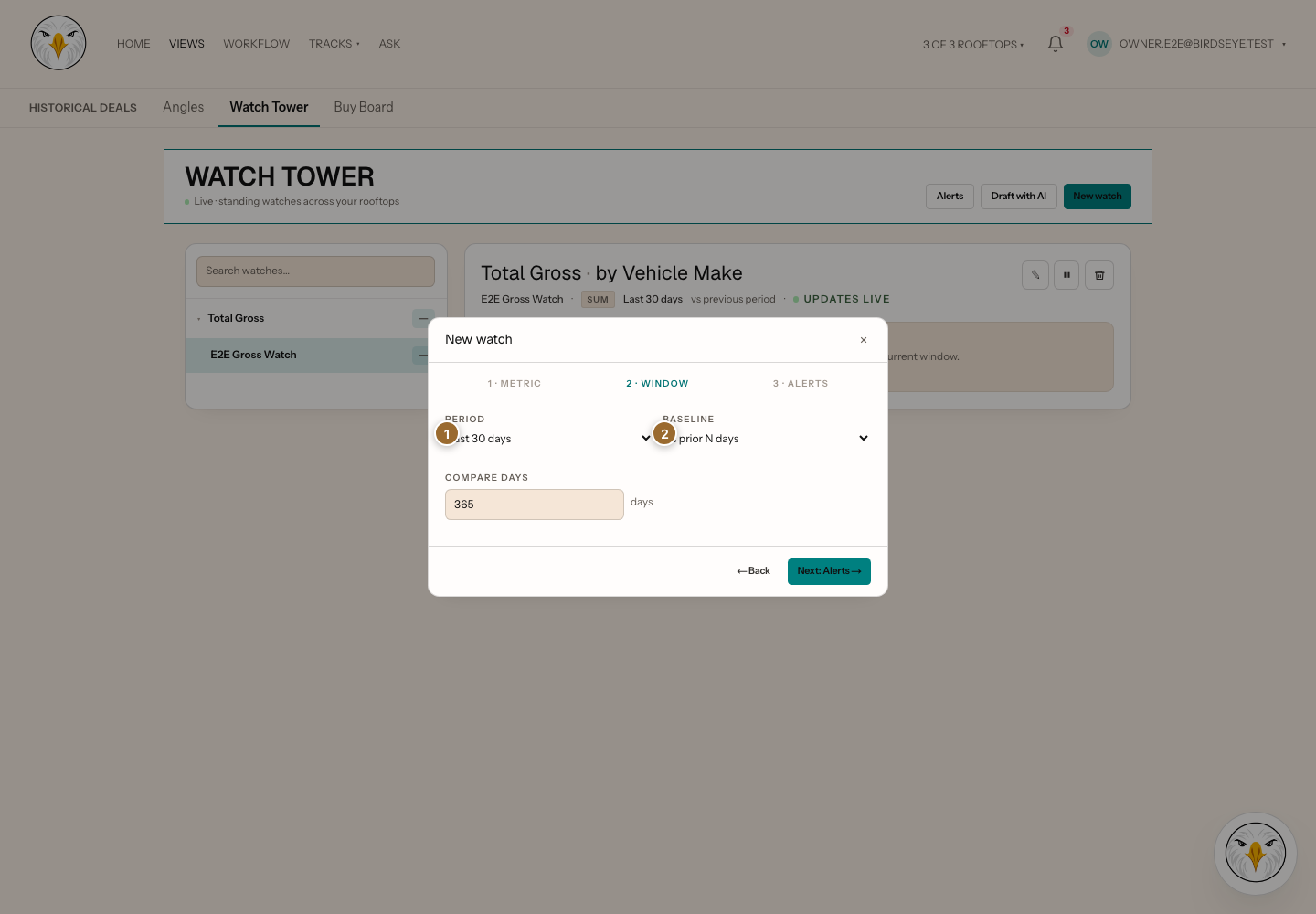
- Select Period, the current time window to evaluate.
- Select Baseline, the earlier window used for comparison.
- If custom-day or trailing-window controls appear, enter the requested number of days.
- Select Next: Alerts.
Expected result: the composer advances to Alerts. The watch will compare like-for-like segments across these two windows; it is not an absolute “above” or “below” value rule.
Step 3: Alerts
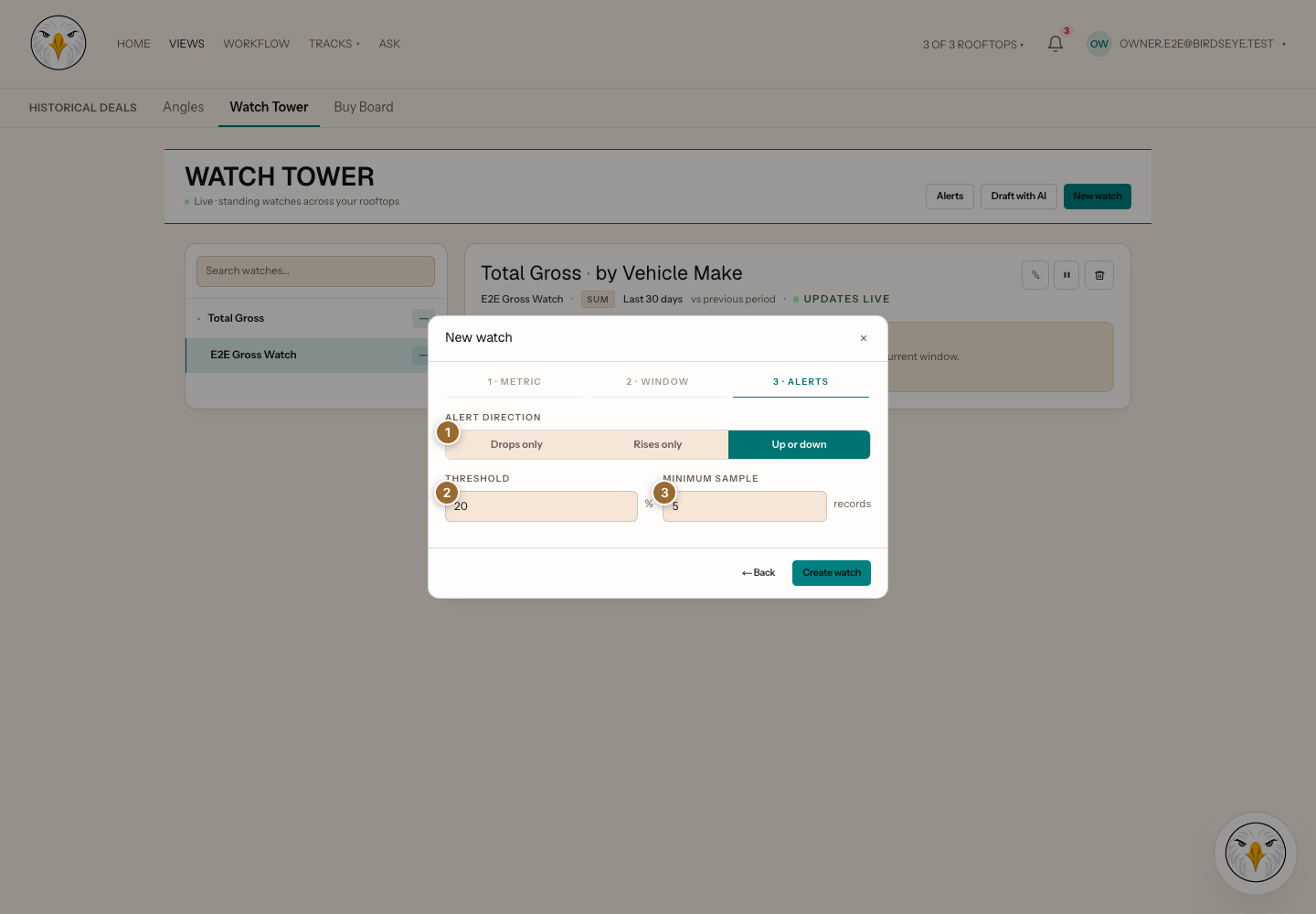
- Select Drops only, Rises only, or Up or down.
- Enter Threshold, the minimum percentage movement required.
- Enter Minimum sample, the minimum record count required before a segment can cross.
- Select Create watch.
Expected result: the composer closes and the watch appears in Watch Tower. A segment creates an alert only when its direction, percentage change, and sample size all meet the watch.
Draft a watch with AI
- In Watch Tower, select Draft with AI.
- Describe the metric, segment, periods, direction, threshold, and sample size you want.
- Review the proposed draft.
- Select Edit in composer.
- Verify all three composer steps before creating the watch.
If the draft is incomplete or unsuitable, close it and use New watch to enter the settings manually. Treat AI output as a draft, not as a confirmed rule.
Read watch results
- Select a watch in the Watch Tower list.
- Review each segment row in the selected-watch detail.
- Read Current, Baseline, the absolute change, percentage change, and record count together.
- Use severity and crossed-state styling to find segments that met the rule.
- Select an available segment drill-down to inspect supporting records.
The web detail recomputes the selected watch for its current context. The mobile Watch Tower panel shows the latest scheduled evaluation returned by the service. Values can therefore differ temporarily between web and mobile.
Find Watch Tower alerts
From Watch Tower:
- Select Alerts.
From anywhere in the signed-in web app:
- Select the bell in the header.
- In Signals, select the Watch source filter when needed.
- Open the Watch alert.
A Watch alert is a signal. Take it, resolve it, or mark it Not a problem like any other signal. Its detail shows the numbers the watch saw when it fired.
Edit, pause, or delete a watch
- Select the watch.
- Select Edit to reopen its settings, Pause to stop active evaluation, or Delete to remove it.
- Confirm a destructive action when prompted.
A paused watch remains in the list. The current screen does not provide a working resume action and continues to show Pause. This is a known product gap; do not delete a watch merely to look for a resume control.
The composer has no recipient field. Delivery follows the product's Watch notification behavior and each person's notification preferences.
Troubleshooting and recovery
- The watch did not fire: verify direction, percentage threshold, minimum sample, current period, baseline, date field, rooftop scope, and segment values.
- A field is missing: the selected track may not provide a compatible field, or the feature may not be available for the current access.
- Mobile looks older than web: mobile shows the latest scheduled result; use the web selected-watch detail for a live recomputation.
- No notification arrived: check Signals first, then review notification preferences and delivery health.
Related articles
Last verified against the product on 2026-07-29.