Use Signals and close the loop
What you will accomplish
You will find an actionable Signal, open it, collaborate, and record its outcome.
Who can do this
All roles with Signals access can review the inbox. Available actions depend on Signal type and permissions.
Before you start
A Signal is an item surfaced for attention. A loop records the follow-up and outcome around an actionable Signal.
A Signal is Open or Closed (Resolved or Not a problem). Verified, Recurring, and Snoozed are badges Birdseye adds. Taking or assigning a Signal claims it.
Find a Signal
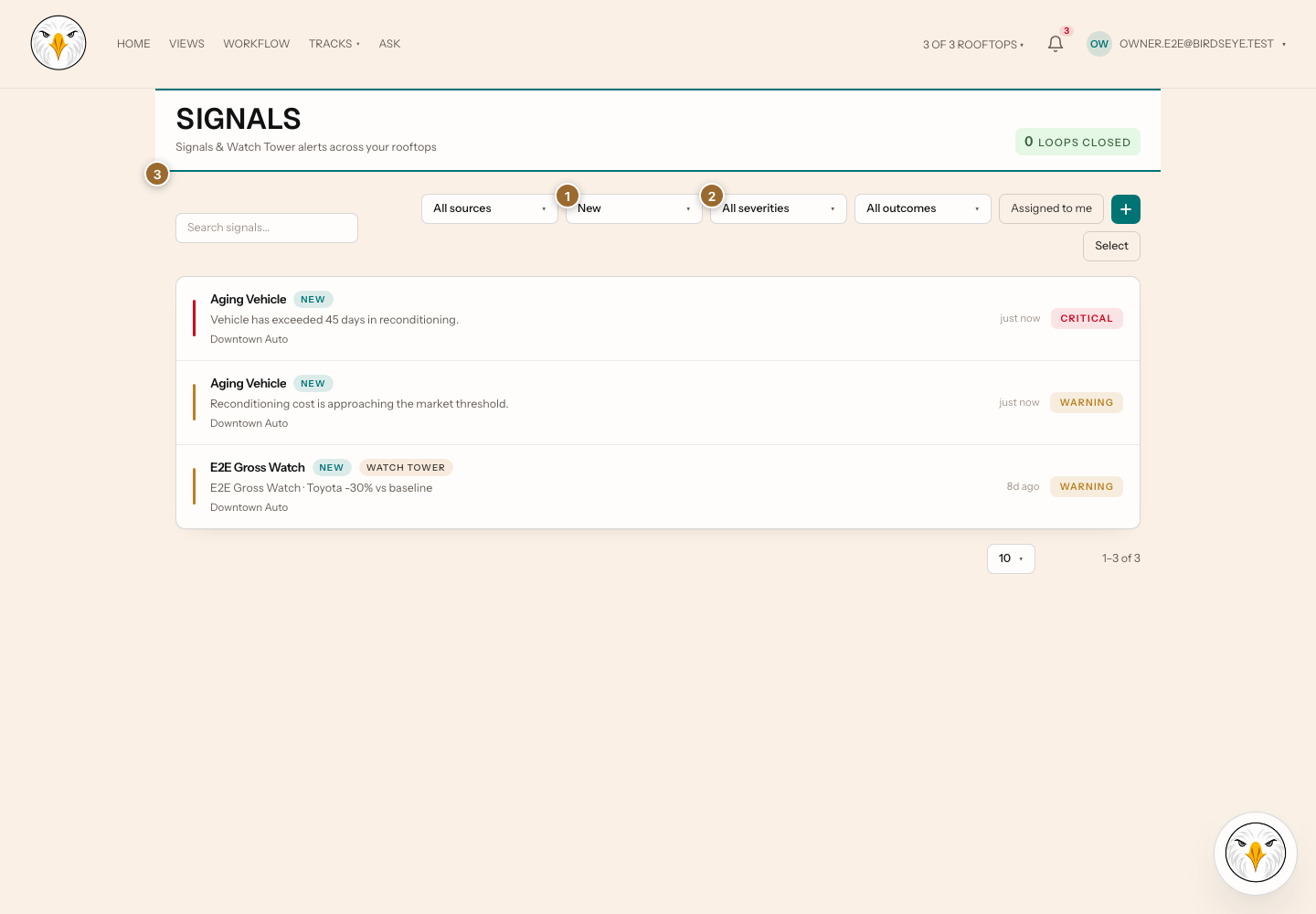
- Select the header bell or Signals.
- Choose Open (the default), Closed, or All, and a source filter if needed.
- Enter search text when needed.
- Select an ordinary Signal row to open its detail.
- Read the source, context, evidence, and current status before acting.
Open Team progress to see completion totals and the team leaderboard.
Watch Tower alert rows open their detail pages. Eligible open alerts can be selected alongside Signals for bulk status changes. If an action only partly succeeds, review the reported results and remaining selection before trying again.
Work the Signal
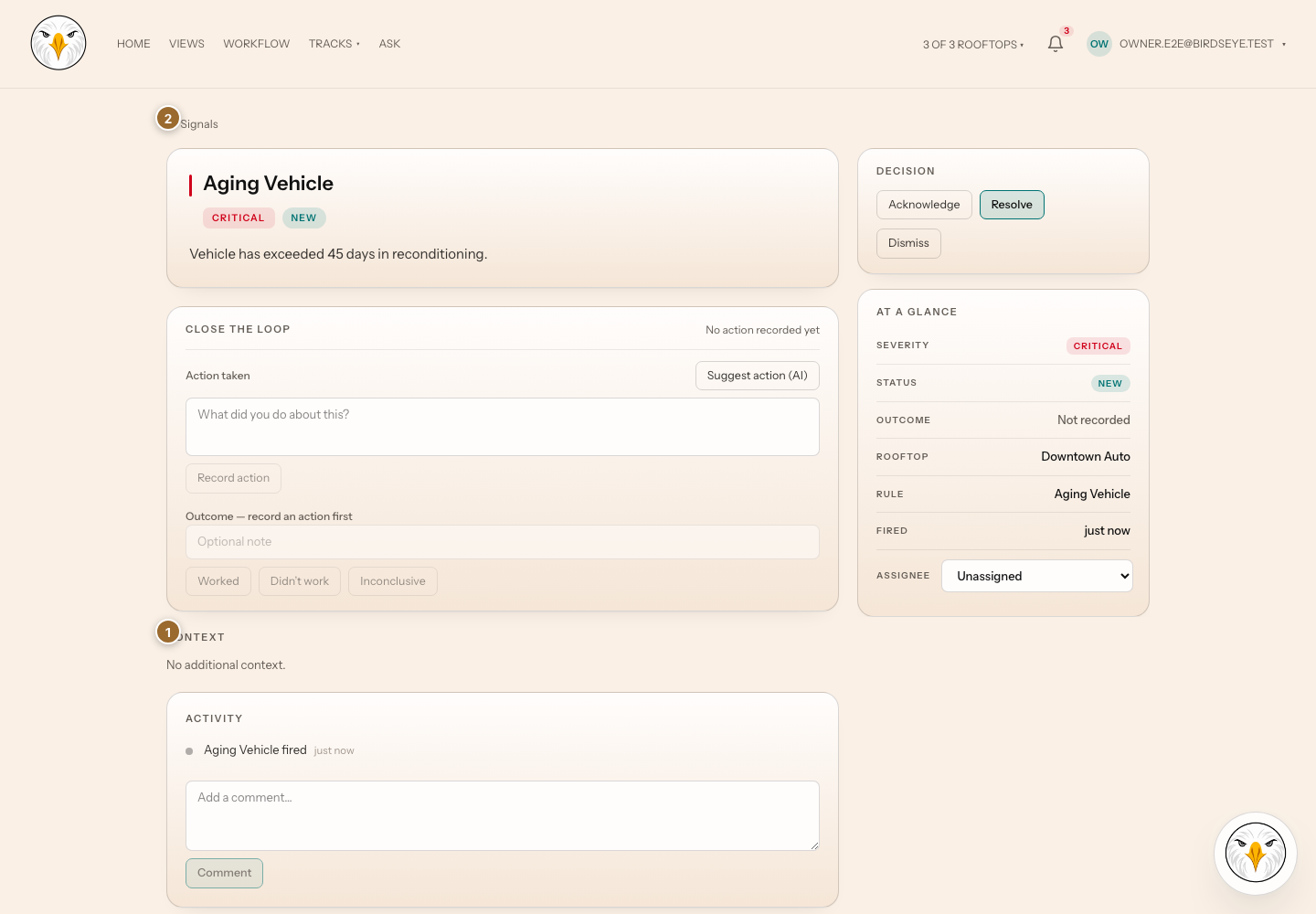
- In Overview, review what needs attention, take or assign the Signal, and record what you did in Close the loop. Outcome choices appear after an action is recorded.
- Select Resolve signal, Snooze, or Not a problem as appropriate. Snooze opens duration choices. For Not a problem, you can add a reason and tick It was a false alarm. If your organization requires an outcome, record it before resolving.
- Open Context for the information captured at detection. Station timing, when available, also shows at the top of the page.
- Open Activity to read the full history or add a comment. Overview shows the three most recent events.
- Confirm that the saved status, assignee, action, or outcome appears. Back to signals returns to your inbox with its filters preserved.
Write a rule
Owners and Admins write the rules that raise Signals in Config → Signals.
- Select New signal, choose the Track, and enter a Name.
- Fill in the sentence, which reads like "When a measure is above a number, flag it". Pick the measure, the comparison, and the number from the choices shown.
- Read the live count under the sentence. It shows how many records match right now and updates a moment after you change the number. If it says some records could not be checked, they are missing data.
- Select Create signal. If the sentence is incomplete, Birdseye shows what is missing next to the field and does not save.
Advanced holds the scope list, the message, and the rule definition (JSON). Edit the definition and the sentence follows. If a rule is too detailed for the sentence, it opens with the definition under Advanced and the sentence is turned off.
The count is a preview only, and it counts only the rooftops in your current view. When that view doesn't cover every rooftop (because you narrowed it, or because your access is limited to some rooftops), Birdseye can't preview a rule that uses an all-rooftops measure or a rule scoped to the whole organization. If your access covers every rooftop, switch the view to all of them to preview these rules.
Use bulk actions
- In the inbox, select eligible rows.
- Review the selection count.
- Select the bulk action.
- Confirm the result.
Rows that do not expose selection are not eligible for bulk action.
Expected result: the Signal reflects the saved assignment, comment, outcome, or close. Watch alerts work the same way.
Troubleshooting and recovery
- An action is missing: Signal type, state, or role may not permit it.
- The inbox is empty: clear source, status, and search filters.
- A push opened no detail: open Signals and find the item by source or time.
Related articles
Last verified against the product on 2026-07-29.